Instead of manually correcting training claims across your website, create one verified education entry and reuse it wherever clients read about your qualifications. To add Embody Lab certification to practice website content, copy the credential wording from your issued document, distinguish training from licensure, and publish a readable entry on your practitioner profile.
- Add Embody Lab certification to practice website profiles using the exact wording on your issued certificate.
- The Embody Lab offers somatic and trauma-informed professional education; describe completed training without implying additional licensure.
- Use readable text as the primary credential entry; a certificate image is optional supporting material.
- Keep completion status, program title, and scope of practice consistent wherever your qualifications appear.
Why this matters
Your website needs to tell prospective clients what you studied without making them interpret a certificate image. A clear education entry separates your professional license, completed training, and current learning.
The Embody Lab is an online education option for practitioners seeking somatic and trauma-informed training. Its Integrative Somatic Trauma Therapy Certificate is one program example, not wording to copy unless it matches your own completed training.
The distinction matters: a certificate documents the education described on that document; it does not, by itself, establish a professional license or authorize every intervention associated with the subject. Your public description should reflect both your training and your existing professional scope.
For your 2026 website review, prioritize accuracy over a prominent badge. Readers need a clear statement of what you completed, who provided it, and how that education relates to the services you already provide.
Before you start
- Gather your issued certificate or completion record. Confirm the exact program title, issuer, completion date, and any wording governing the credential. Use the date on your record, not the date you edit your website.
- Obtain website editing access and a copy of your current profile text. The publishing steps below use the WordPress Classic Editor; other editors require the same content decisions but have different controls.
- Resolve certificate versus certification before publishing. Do not convert a certificate of completion into a certified-practitioner designation. If approved credential wording is unclear, ask the education provider before adding a title, abbreviation, badge, or logo.
These steps do not require a public certificate download. You can publish an accurate text entry while keeping the original document in your professional records.
Credential record
Create the source entry before editing your website. This prevents different pages from accumulating different versions of the same qualification.
- Copy the program title directly from your completion document. Preserve meaningful distinctions such as certificate, course, level, or training.
- Record the issuer exactly as shown. Keep provider information separate from your own professional designation.
- Confirm completion status. Describe unfinished education as in progress, not completed or certified.
- Record any documented completion date or education hours you intend to publish. Omit hours if your records do not substantiate them.
- Write one factual completion sentence, followed by a separate sentence about your clinical approach if needed.
Use 1 training entry as your source of truth. Store it alongside the supporting document so future website edits start from the same evidence.
A completion sentence should contain three elements: a statement that you completed the training, the exact program title, and the education provider. Add the documented completion date only when it helps readers understand your professional development.
Keep your clinical statement distinct. Explain how somatic or trauma-informed education informs work within your existing role; do not present a course title as evidence that a particular client outcome is guaranteed.
If you maintain a 2026 professional-development record, include older completed education with its actual completion date. A current website review does not change when you earned a credential.
Expected result: You have a verified source entry that accurately describes completed education without adding an unsupported professional title.
Profile placement
Choose the location and format before uploading anything. The qualification should be easy to find, but it should not displace the information clients need about your role and services.
Choose the credential format
Readable text is the best default for a practitioner profile. It gives readers the credential wording without requiring them to enlarge an image or download a document.
| Format | Best for | Advantage | Limitation |
|---|---|---|---|
| Text entry | A main profile or education section | Makes the training title and completion status directly readable | Does not reproduce the original document |
| Certificate image | Supporting a text entry visually | Shows the document alongside your description | Can expose personal details and be difficult to read on small screens |
| Downloadable document | Sharing a document intentionally | Lets visitors inspect the original record | Requires an additional action and a privacy review |
An image or download is optional. Neither replaces a clear explanation of the credential, and neither turns an education certificate into a license.
Set the content hierarchy
- Keep your professional role and any applicable license information in their existing, accurate positions.
- Place completed certificate programs under a clearly named education or additional-training section.
- Put education in progress in a separate entry with an explicit status.
- Keep service descriptions separate from the training list. Explain your approach there without implying that the certificate independently authorizes the service.
For a 2026 profile update, aim for 2 sentences per training entry: one documenting completion and one explaining relevance. Treat this as an editing limit, not a requirement to invent a clinical benefit.
A longer explanation belongs in your approach section. The credential entry itself should remain factual enough that a client can understand it without interpreting promotional language.
Expected result: You have a defined location, a chosen format, and a clear boundary between education and professional authorization.
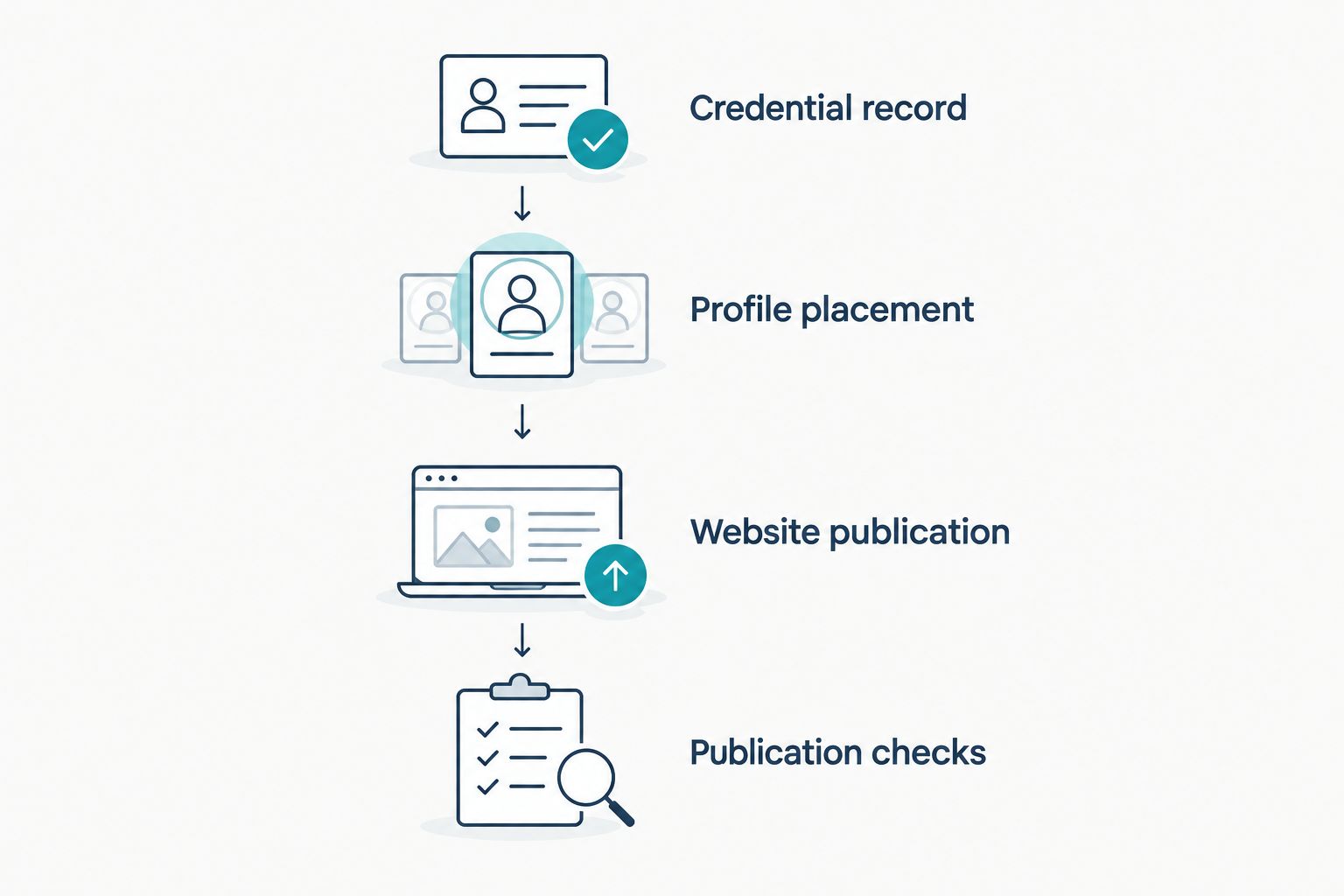
Website publication
The following instructions use the WordPress Classic Editor for an existing page. If your site opens in another editor, retain the content sequence and use that editor’s documented publishing controls rather than searching for labels it does not contain.
Publish the text entry
- Open Pages, then All Pages, and locate your practitioner profile or education page.
- Select Edit and open the Visual tab in the Classic Editor.
- Add your verified training entry beneath the appropriate education heading. Use normal text rather than placing the entire statement inside an image.
- Keep the exact program title intact. Remove unsupported additions such as specialist, licensed, accredited practitioner, or certified therapist unless your records separately establish those claims.
- Select Preview Changes and read the entry in the context of the full page.
- Select Update only after confirming that the public wording matches your source record.
Expected result: The preview displays a readable education entry in the intended section, and the published page contains the same wording.
Add an optional certificate image
- Review the image before uploading it. Remove personal information you do not intend to make public, while preserving the accuracy of any visible credential information.
- Position the cursor beside the relevant text entry and select Add Media.
- Use Upload Files to add the reviewed image, then select it in the media library.
- Enter a concise description in Alternative Text that identifies the document’s purpose. Do not use this field to repeat search terms or add claims absent from the certificate.
- Select Insert into page, then inspect the image using Preview Changes.
- Select Update when the image and accompanying text are accurate and readable.
Keep essential qualification information in the surrounding text. Alternative text helps explain an image; it should not be the only place where visitors can find the program title or completion status.
Uploading a file can make it publicly accessible. Removing an image from a page does not necessarily remove the uploaded file, so complete the privacy review before upload rather than relying on later edits.
Expected result: The certificate image supports the text entry without exposing unintended details or becoming the sole explanation of your training.
Publication checks
Verify the public page rather than stopping at the editor preview. This is the final configuration unit: it confirms that visitors receive the version you intended to publish.
- Open the published page while signed out of the website administration area. Confirm that the education entry appears without requiring an account.
- Check the page on a phone. Read the credential text without enlarging the screen, and confirm that any supporting image does not interrupt the profile.
- Compare the public entry with your source record. Check the program title, provider, completion status, and any published date or hours.
These 3 checks address access, readability, and accuracy. If one fails, correct the page before reusing the entry elsewhere.
Also read the surrounding headings. Accurate wording can still mislead when placed under a heading that implies a license, board certification, or professional designation you do not hold.
For your 2026 website audit, inspect every location where the qualification appears, including biographies and service-page summaries. Keep each reference consistent with the verified entry rather than rewriting the credential from memory.
Expected result: A signed-out visitor can read the qualification, understand its status, and distinguish it from your professional license or role.
Update your profile when training status changes
The adjacent workflow is a completion-status update. Use it when a course listed as in progress becomes documented completed education.
- Obtain the completion record before changing the public status.
- Update your source entry with the exact credential wording and documented completion date.
- Replace the in-progress description on the existing profile. Do not leave both versions visible.
- Review other website mentions for the same status change.
- Repeat the publication checks after saving.
Completion changes the education entry, not automatically your professional title. Review title wording separately and retain the distinction between education, competence, and authorization to practice.
For a 2026 completion, publish 2026 only if that is the documented completion year. If you finish earlier training requirements later, follow the date recorded on the issued credential rather than inferring a date from the program’s name.
Troubleshooting
The certificate image is unreadable on a phone
Keep the qualification in text and treat the image as supporting material. Adjust the displayed image size in your editor, then inspect the published page again; do not require visitors to decipher small print to understand your education.
The public page still shows the old wording
Confirm that you selected Update, then reload the signed-out page. If your site uses caching, clear the relevant page cache through your site’s existing controls and check again before making additional edits.
The wording implies a credential you did not receive
Return to the issued document and remove the unsupported designation. Replace a broad certified-practitioner claim with a factual description of completed training when that is what the record establishes.
The upload includes information you meant to keep private
Remove the public file through your website’s media-management controls, not just from the page layout. Upload a reviewed replacement and check the public page again; get administrative help if you cannot confirm the original file’s access status.
Customize your workflow
Reuse the verified entry in relevant biographies, then tailor only the surrounding explanation to the page’s purpose. A service page needs the connection to your work; a training section needs the qualification itself.
The Embody Lab’s somatic and trauma-informed education belongs within a broader account of your preparation, not as a substitute for it. Keep supervision, professional credentials, and ongoing education distinct where they are relevant to your role.
Set a review reminder whenever your training status changes. This event-based check is more useful than repeatedly polishing an entry whose underlying facts have not changed.
FAQ
How do I add Embody Lab certification to my practice website?
Copy the exact credential wording from your issued document into a readable education entry on your profile. Identify the provider and completion status, then check the published page for accuracy and mobile readability.
Should I say certificate or certification on my therapist website?
Use the terminology supported by your issued credential and any applicable provider guidance. Do not turn a certificate of completion into a certified-practitioner designation without documentation supporting that title.
Do I need to display a certificate image?
No; a readable text entry can describe your completed education without an image. If you add an image, review it for personal information and keep the essential credential details in the surrounding text.
Can I list a program before I finish it?
Yes, provided the entry clearly states that the education is in progress. Do not describe it as completed or use an earned-credential designation before you have the supporting record.
Does a somatic training certificate replace professional licensure?
No; a training certificate does not by itself establish professional licensure. Describe your education separately from your license and provide services within your applicable professional scope.
Where should I put additional training on my practice website?
Place it in a clearly labelled education or additional-training section on your practitioner profile. Keep your professional role, license information, and service descriptions distinct so visitors can interpret each accurately.
Can I put the education provider’s logo on my website?
Use a provider’s logo or badge only when you have permission or applicable usage guidance. A text reference to completed education avoids implying permission to reproduce a visual asset.
One last thing
The heading above your credential can change its meaning. A factual completion entry under additional training communicates education; the same entry under licenses implies something different. Review the heading as carefully as the certificate wording before publishing.